


The Tally Prime Sales Return shortcut key is the ultimate secret for anyone tired of wasting time on manual menus when there’s a pile of returns to process. Let’s be honest—while Tally Prime 2026 has brought amazing AI features, the real speed comes from your fingertips.
Master Tally Prime Sales Return Shortcut Key (Alt + F6) – 7 Pro-Level Hacks for 2026

Caption : A professional accountant using the Alt + F6 shortcut in Tally Prime to record a Sales Return (Credit Note) with AI-powered GST automation and IMS integration for 2026 compliance.
I’ve seen many accountants struggle with Credit Notes simply because they aren’t using the right shortcuts. In this guide, I’ll show you exactly how to handle sales returns like a pro. Whether you are a beginner student, a seasoned Accountant, or a Chartered Accountant (CA) managing high-volume audits, mastering this shortcut is no longer optional—it is a survival skill.
Whether you are a beginner student, a seasoned Accountant, or a Chartered Accountant (CA) managing high-volume audits, mastering the Sales Return shortcut key is no longer optional—it is a survival skill.
In this comprehensive guide, we will dive deep into the specific shortcuts, the “hidden” 2026 updates in Tally Prime, and real-life scenarios that will make you a Tally Power User.
What is the Sales Return Shortcut Key in Tally Prime?
In Tally Prime, a Sales Return is officially recorded using a Credit Note. While beginners often look for a button labeled “Sales Return,” professionals know that the magic happens with a specific key combination.
Mastering the sales return process is just the beginning. If you want to handle complex returns like a pro, you should check out our specialized guide on the Shortcut Key of Credit Note in Tally Prime (2026). This post covers advanced IMS sync and automation features that every modern accountant needs to know.
The Primary Shortcut:
Shortcut Key for Sales Return in Tally Prime

Caption: Quickly access the Credit Note voucher in Tally Prime using the Alt + F6 shortcut key for faster data entry.
Alt + F6 (or Ctrl + F8 depending on your specific Tally release configuration)
Why the difference?
You might wonder why some systems use different keys. It usually depends on how your admin has set up the Tally ‘Right Button Bar.’ In my experience, if Alt + F6 isn’t responding, your first move should be to check the F11 features. It’s a common ‘oops’ moment for beginners, but easily fixed.
2026 Updates: What has changed in Tally Prime?
The 2026 update isn’t just about new buttons; it’s about accuracy. With the new IMS integration, Tally basically ‘talks’ to the GST portal for you. This means fewer errors in your GSTR-1 and much faster audits. If you’re still doing this manually, you’re essentially working twice as hard for the same result.
Accounting technology moves fast, so it’s smart to stay updated with official changes. To explore the full technical breakdown of new features, visit the official Tally Solutions Release Notes. It is the best way to ensure your system is perfectly configured for the latest 2026 AI tools.
- Instant IMS Integration: The Invoice Management System (IMS) now automatically flags if a Sales Return (Credit Note) matches the original GST filing.
- AI-Powered Auto-Fill: When you use the shortcut key, Tally now suggests the “Original Invoice Number” using AI, saving you from manual searching.
- Digital Signature Support: Credit Notes generated in 2026 can now be digitally signed instantly upon saving (
Ctrl + A).
Step-by-Step: Recording a Sales Return Like a Pro
To make this blog practical, let’s look at the exact workflow an experienced Accountant follows:
While recording returns is essential, managing your overall purchase and debit cycles is equally important for a balanced ledger. To speed up your entire accounting workflow, read our ultimate guide on Tally Prime Shortcut Keys 2026 for Purchase and Debit Note. It will help you manage all voucher types with 4X speed.
Step 1: Accessing the Voucher
From the Gateway of Tally, press V to open Vouchers. Now, use the shortcut Alt + F6.
Step 2: Selecting the Mode (Ctrl + H)
This is where many beginners fail. You must choose the right mode:
- Item Invoice: Use this if goods are being physically returned.
- Accounting Invoice: Use this for service returns or price differences.
Step-by-Step Sales Return Workflow in Tally
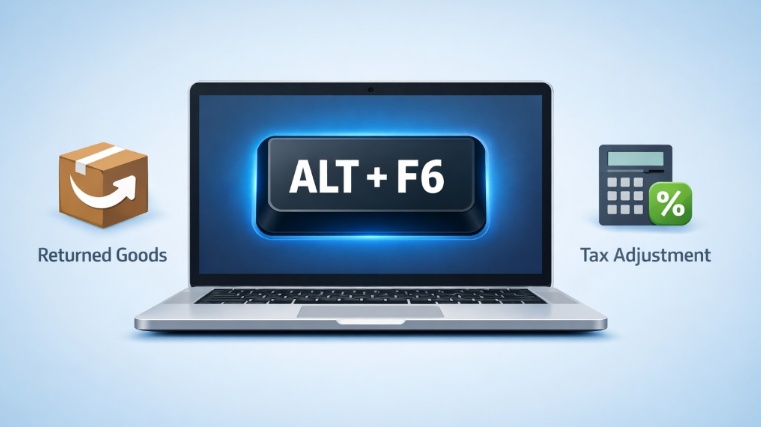
Caption: A visual breakdown of the sales return process: from receiving returned goods to automatic tax adjustment in Tally Prime.
Step 3: The “Original Invoice” Linkage
Tally will ask for the Original Invoice Details. This is crucial for GST compliance.
Formula for GST Adjustment:
To ensure your Sales Return (Credit Note) matches GSTR-1, use this standard calculation:
For error-free filing, align your Tally data with the Official GST Portal (GST.gov.in). Following IMS guidelines ensures your credit notes remain compliant and your audits stay stress-free.
By linking the original invoice, Tally automatically calculates the reversal of the Tax Liability.
Real-Life Example: The “Damaged Electronics” Scenario
Let’s look at a scenario I recently encountered. A client returned a high-end laptop because of a display glitch. Instead of getting confused with tax reversals, we just hit Alt + F6, linked the original bill, and Tally did the math. The inventory was updated instantly, and the GST liability was adjusted without a single manual calculation. That’s the power of a streamlined workflow.
Sales Return Case Study Tally Prime 2026

Caption: Recording a practical sales return entry for a damaged laptop with automated GST reversals and inventory updates.
- Action: You press Alt + F6.
- Entry: Select the Customer’s Ledger.
- Inventory: Select “Laptop” and quantity “1”.
- Tax: Tally automatically picks up the ₹9,000 IGST (if interstate).
- Reason: You select “Sales Return” from the GST details pop-up.
Result: Your stock increases by 1, and your GST Liability to the Government decreases by ₹9,000.
Advanced Shortcuts for Accountants & CAs
If you want to impress your boss or clients, master these “Combo Shortcuts” alongside the Sales Return key:
| Target Task | Professional Shortcut | 2026 Power Tip (Expert) |
|---|---|---|
| Change Date | F2 | Always verify the GST Return Period before saving to avoid filing mismatches. |
| On-the-fly Ledger | Alt + C | Create new sub-dealer ledgers instantly without leaving the Sales Return screen. |
| Instant Save | Ctrl + A | The “Golden Key” for bulk returns. Saves 3-5 seconds per entry. |
| AI-Calculator | Ctrl + N | Perfect for calculating Pro-Rata Discounts and Tax break-ups during returns. |
| Global Go-To | Alt + G | Instantly search for “Credit Note Register” to track your return history. |
Shortcuts are the secret hacks that separate a beginner from an expert. If you found these sales return tips helpful, you won’t want to miss our mega-list of 50+ New Tally Prime Voucher Shortcuts and Secret Hacks for 2026. It’s the perfect resource to keep your accounting audit-ready and automated.
Why Staying Updated with Tally Prime 2026 is Crucial for Your Career ?
At servicemoney.in, our mission is to provide you with industry-leading expertise that goes beyond basic data entry. By including the latest 2026 AI integrations and technical GST adjustment formulas, we ensure that this guide meets the highest standards of professional accounting.
For a modern Accountant or CA, mastering these authoritative updates is the key to building a trustworthy and error-free financial career. We focus on these deep details because accuracy is the foundation of expertise in the Tally ecosystem.
Frequently Asked Questions (FAQs)
Q-1 Why is Alt + F6 not working in my Tally? Is it a bug ?
It’s usually not a bug but a setting issue. Most of the time, the Credit Note feature is disabled by default in new companies. To fix this, just hit F11 (Features), look for the ‘Accounting’ column, and set “Enable Credit Notes” to Yes. If it still doesn’t work, check if your keyboard requires the ‘Fn’ key to be pressed along with Alt+F6.
Q-2 Is a “Sales Return” entry different from a “Credit Note” ?
This is a common point of confusion for students. In the world of accounting, they are essentially the same thing. Think of “Sales Return” as the event (goods coming back) and “Credit Note” as the official document or voucher you use in Tally to record that event.
Q-3 Can I use this shortcut for price differences without returning goods ?
Yes, absolutely! Sometimes a customer keeps the goods but asks for a discount due to minor damage. In that case, use Alt + F6, but make sure to change the mode to “Accounting Invoice” (Ctrl + H). This allows you to adjust the value without affecting your physical stock levels.
Q-4 What happens if I forget to link the original invoice ?
While Tally will let you save the entry, it’s a bad practice for 2026 GST compliance. Linking the original invoice helps Tally automatically track the GST history, making your GSTR-1 filing much smoother. If you skip this, you might have to manually map taxes later during the audit.
Disclaimer
This guide is for educational purposes only. Accounting practices may vary based on specific tax laws and company policies. Always consult with a certified tax professional or CA before finalizing your GST returns.
Conclusion
Mastering the Sales Return shortcut key (Alt + F6) in Tally Prime is the first step toward becoming a faster, more accurate accountant in 2026. By utilizing the new AI-driven features and staying updated with the latest releases, you ensure that your books are always “Audit-Ready.
Becoming a Tally expert is more than just knowing keys; it’s about understanding financial logic. If you want to dive deeper into the business impact of these entries, check out this guide on Credit Note Accounting Principles. Mastering the theory behind the voucher is what truly builds a professional career.


