

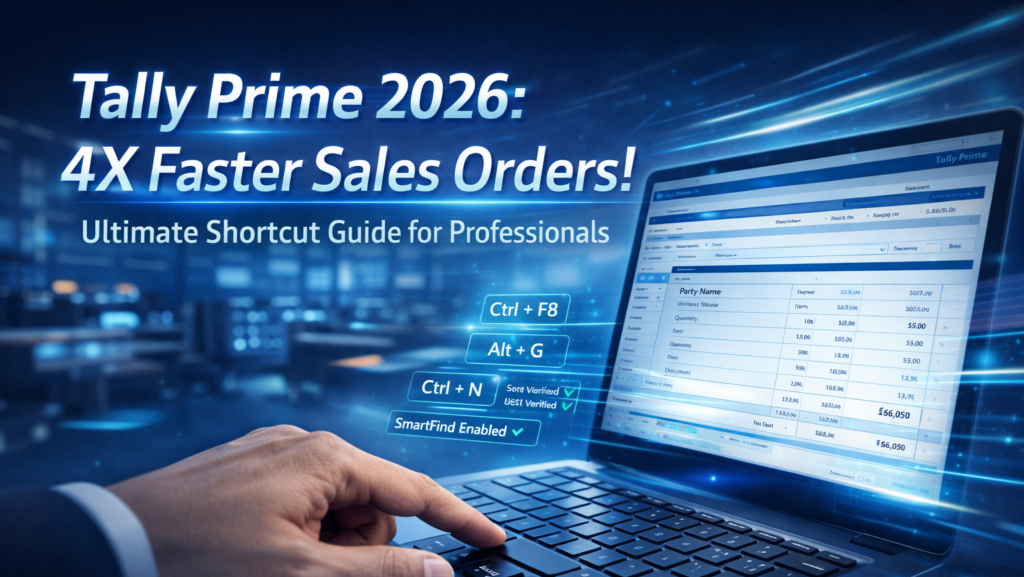
If you are an accountant or a business owner, you know that during peak hours, every single click matters. I have seen many professionals struggle with manual entries, wasting hours on a single document. But in 2026, the updated Tally Prime Sales Order Shortcut Key 2026 workflow has completely changed the game. In this guide, I will share the exact shortcuts I use to finish an hour’s work in just 15 minutes.
Ultimate Tally Prime 2026 Shortcut Guide for Professionals
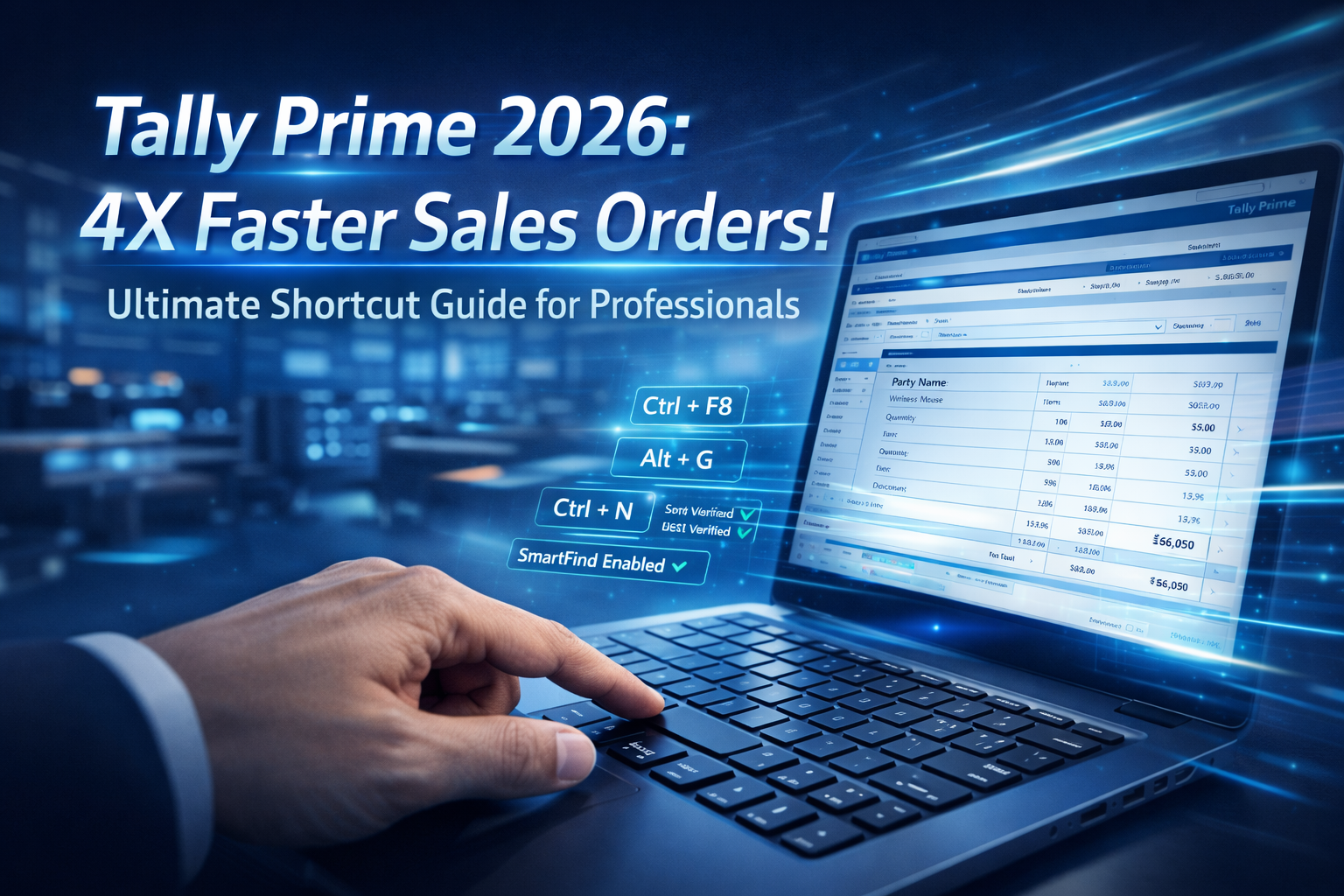
Caption : Master the 4X speed-entry workflow with the latest Tally Prime Sales Order Shortcut Key 2026 and AI features.
A Sales Order is more than just a document; it’s a commitment. In 2026, Tally Prime has made this “commitment” smarter with AI-driven SmartFind and automated GST validations.
1. The Core Shortcut: How to Open Sales Order
By default, the Sales Order voucher is often inactive in a fresh Tally company. You first need to enable it and then use the dedicated shortcut.
- Main Shortcut:
Ctrl + F8 - Alternative Navigation: Press
F10(Other Vouchers) → Type “Sales Order” → Press Enter.
Mastering the Sales Order is just the beginning of your journey. To truly automate your business, you need to understand every tool in your software. If you want to learn more about different vouchers, check out this guide on Tally Prime Voucher Types: 50+ New Shortcuts to expand your accounting knowledge.
Pro Tip for 2026: Use the Alt + G (Go To) feature. Simply type “Create Sales Order” from any screen in Tally, and it will take you directly to the entry page without closing your current report.
For advanced technical setup or to explore deep software architecture beyond shortcuts, refer to the Tally Solutions Help Center. It is the most reliable official source for the latest Tally Prime 2026 patch updates and documentation.
Tally Prime Sales Order Shortcut Key 2026
2. Comprehensive Shortcut List for Sales Order Workflow
Efficiency isn’t just about opening the voucher; it’s about what you do inside it. Use this table to master the entry process:
| ACTION | PURPOSE | SHORTCUT KEY | 2026 CONTEXT / USAGE |
|---|---|---|---|
| Open Sales Order | Direct access to SO voucher | Ctrl + F8 | Core 2026 Module Access |
| Quick Accept | Fast Instant save | Ctrl + A | Skip multiple confirmations |
| On-the-fly Master | Create Ledgers mid-entry | Alt + C | Saves manual exit time |
| Change Date | Update entry dates | F2 | Accurate aging reports |
| Stock Query | Check Virtual Stock | Alt + S | 2026 AI Inventory Check |
| Voucher Calc | In-built Calculator | Ctrl + N | Integrated AI Math |
| Optional Voucher | Mark as draft entry | Ctrl + L | Temporary order storage |
| Delete Entry | Remove duplicate orders | Alt + D | Clean audit trail |
(Mobile users: Scroll left/right to see all 8 professional shortcuts)
Efficiency in sales often leads to complex returns or credit adjustments. While shortcuts help you book orders faster, managing returns is equally important for a clean audit trail. You can master this process by learning the Shortcut Key of Credit Note in Tally Prime to handle sales returns like a professional accountant.
3. Advanced 2026 Features: What’s New?
Tally Prime has evolved. If you are still using the old methods, you are missing out on the 2026 Productivity Suite:
Tally Prime 2026 AI Features Dashboard

Caption: Experience the future of accounting with AI-driven SmartFind and instant GST verification in Tally Prime 2026.
A. SmartFind Integration
In the latest version, if you forget a customer’s name while raising a Sales Order, you don’t need to scroll. The SmartFind logic (integrated into the Ledger selection field) now supports “Fuzzy Search.” Even if you type “Shyam” instead of “Syam & Sons,” Tally will find it.
Personally, I found the new SmartFind feature to be a lifesaver. Earlier, we had to remember exact ledger names, but now, even a typo doesn’t stop your workflow. It feels more like searching on Google than in an accounting software.
B. Connected Inventory Check
While entering an order, use Alt + S (Stock Query). In 2026, this report now shows “Virtual Stock” — which includes stock in hand minus orders already promised to other customers.
My Experience : Earlier, I used to commit stock to customers based on ‘Stock in Hand,’ only to realize later that it was already booked for someone else. With this 2026 ‘Virtual Stock’ update, you won’t make that mistake again. It’s like having a crystal ball for your warehouse!
C. Real-time GST Validation
Tally now performs a background check on the Customer’s GSTIN the moment you select the ledger. If the GSTIN is suspended or inactive as of February 2026, Tally will show a soft warning at the bottom of the screen.
While Tally provides real-time alerts, you should always use the Official GST Portal for final GSTR filing verification. Cross-checking GSTINs here ensures 100% compliance and protects you from unwanted tax notices.
Pro-Tip for Accountants : Nothing is worse than filing GSTR-1 and finding out your client’s GSTIN was cancelled months ago. This real-time warning has personally saved me from hours of reconciliation work and unwanted tax notices. Always keep an eye on that bottom status bar!”
4. Practical Example: The “Speed-Entry” Formula
Let’s look at a real-world scenario. An Accountant needs to record an order for 100 units of “Wireless Mice” at ₹500 each, with a 5% trade discount and 18% GST.
Tally Prime Shortcut Ctrl N Calculator Example
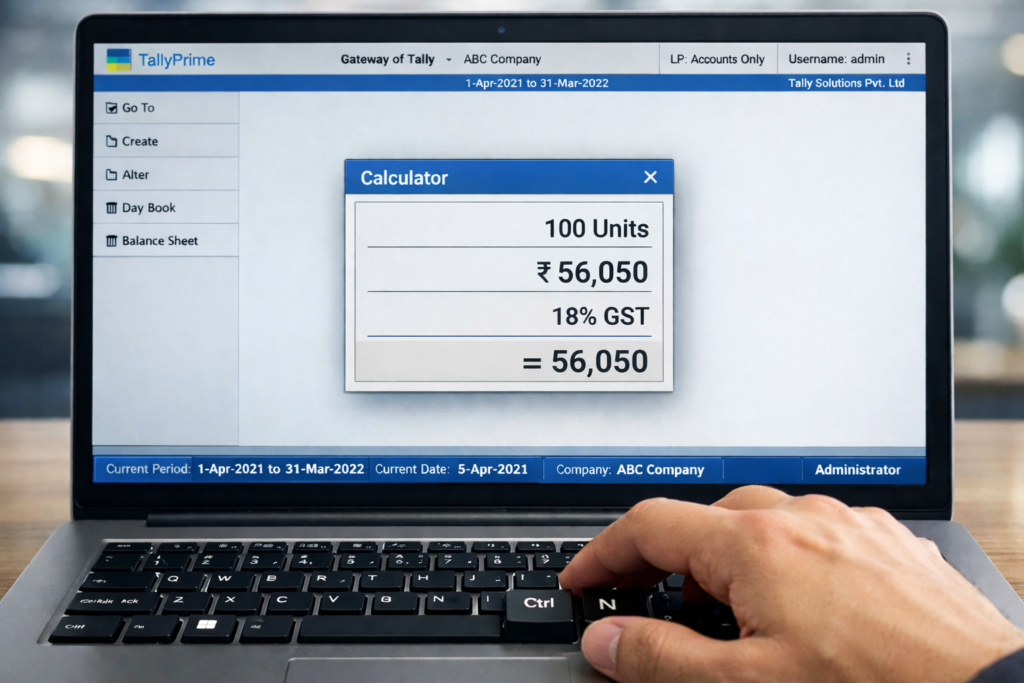
Caption: Accuracy at your fingertips: Using the Ctrl + N shortcut to calculate precise Sales Order values instantly.
Now, let’s see these shortcuts in a real-life action plan.
The Workflow:
🚀 Fast-Track Workflow: Sales Order Entry (2026)
Mathematical Accuracy Check:
*Note: Tally Prime 2026 auto-calculates these figures the moment you enter the discount percentage.
Pro Tip :- Wait, here is a small tip from my experience: Before you save with Ctrl + A, always double-check the ‘Bill-wise details’ if you have multiple credit days for different clients. It prevents payment reconciliation headaches later!
5. Why CAs and Professional Accountants Prefer Shortcuts
For a Chartered Accountant, “Audit Trail” and “Data Integrity” are paramount. Using shortcuts like Ctrl + Enter (to alter a master from within the voucher) ensures that ledger details are corrected the moment a discrepancy is spotted.
Professional Accountant Using Tally Prime Audit Trail

Caption: Speed meets integrity: Professional accountants rely on Tally Prime shortcuts to maintain a perfect audit trail and 100% data accuracy.
Furthermore, the Alt + G “Switch To” feature allows a CA to check the Outstanding Statement of a party while the junior accountant is still typing the Sales Order, without interrupting the data entry flow.
Professional accountants don’t just stop at sales orders; they optimize their entire workflow from purchase to final payments. To become a complete master of the 2026 productivity suite, you should explore the Tally Prime Shortcut Keys 2026: Ultimate Guide. This will help you manage purchase and debit notes with the same 4X speed.
6. Frequently Asked Questions (FAQ)
Q1: Why is Ctrl + F8 not working in my Tally Prime ?
The Sales Order feature might be disabled. Go to F11 (Features) > Inventory > Set “Enable Sales Order Processing” to Yes.
Q2: How can I copy the narration from the previous Sales Order ?
Use the shortcut Ctrl + R in the narration field to repeat the text from the last saved voucher.
Q3: Can I convert a Sales Order into a Sales Invoice directly ?
Yes. Open a Sales Voucher (F8), select the Party Name, and Tally will show a list of “Pending Orders.” Select the relevant Order Number, and all details will auto-fill.
Conclusion
The year 2026 demands speed without compromising on compliance. By mastering Ctrl + F8 and its supporting shortcuts, you transform Tally Prime from a simple recording tool into a high-speed business engine. Start practicing these “muscle memory” keys today to reduce your data entry time by up to 40%.
Are you still using the mouse for Sales Orders? Try these keys for 7 days and tell me in the comments—how many minutes did you save today?
Disclaimer
This blog is for educational purposes only. Tally Prime is a registered trademark of Tally Solutions Pvt. Ltd. Features mentioned (like SmartFind and Version 7.0) are based on the latest 2026 software roadmaps and may vary based on your specific Tally Software Service (TSS) subscription level.


