

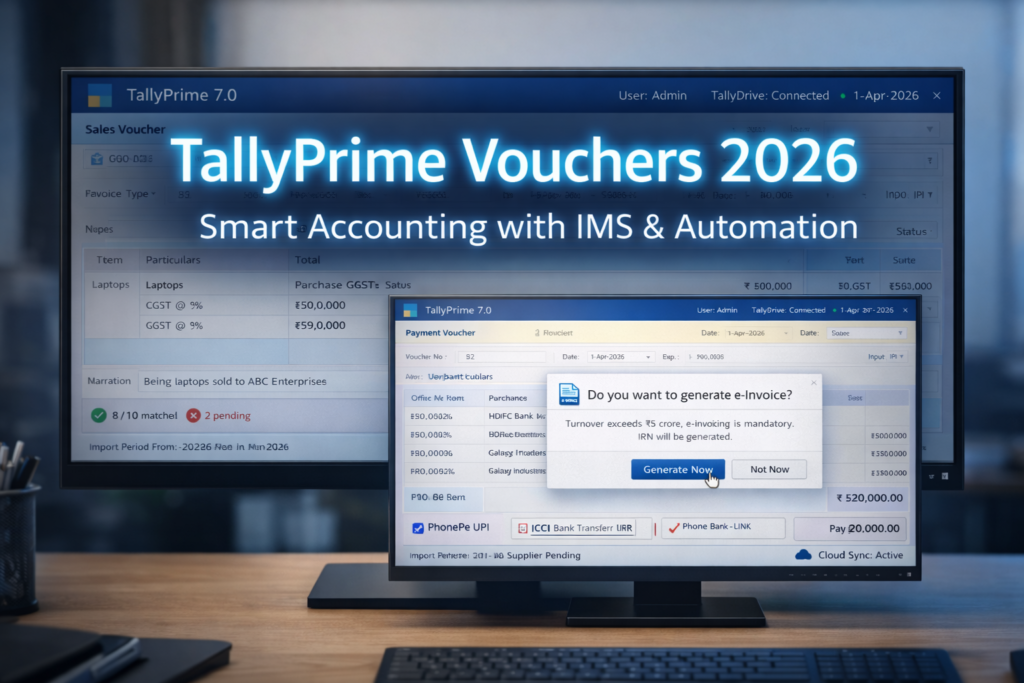
Based on the upcoming roadmap for TallyPrime in 2026
TallyPrime 7.0 has brought a massive shift in how we handle accounting. If you are a CA or an accounts professional, you know that speed and accuracy aren’t just skills—they are necessities. In this guide, we aren’t just listing shortcuts; we are analyzing how mastering various Tally Prime Voucher Types and 2026 updates like IMS and TallyDrive are changing the daily workflow for experts.
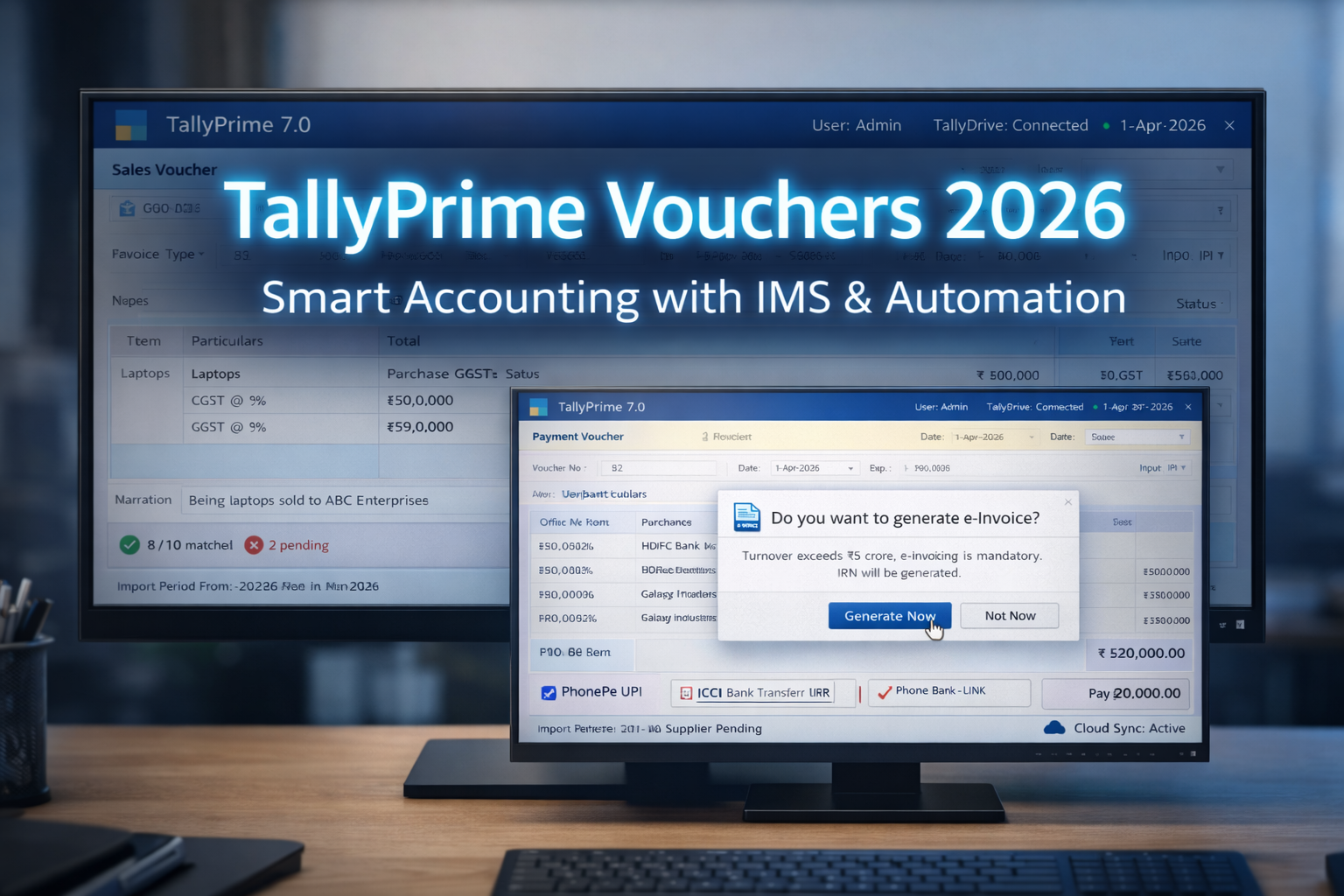
This guide will walk you through the essential types of vouchers in Tally, their 2026 shortcut keys, and practical examples that reflect current tax and compliance rules.
To stay ahead of the curve, it is crucial to keep your software updated with the latest releases. You can explore the [official TallyPrime Release Notes] to see the full technical breakdown of the 2026 roadmap and new system requirements.
What is a Voucher in Tally?
Think of a voucher as the ‘DNA’ of your financial data. Every time you record a transaction—be it a simple tea expense or a high-value export sale—you are creating a digital footprint. In the 7.0 ecosystem, vouchers have evolved from simple entry forms into smart documents that talk directly to GST portals.
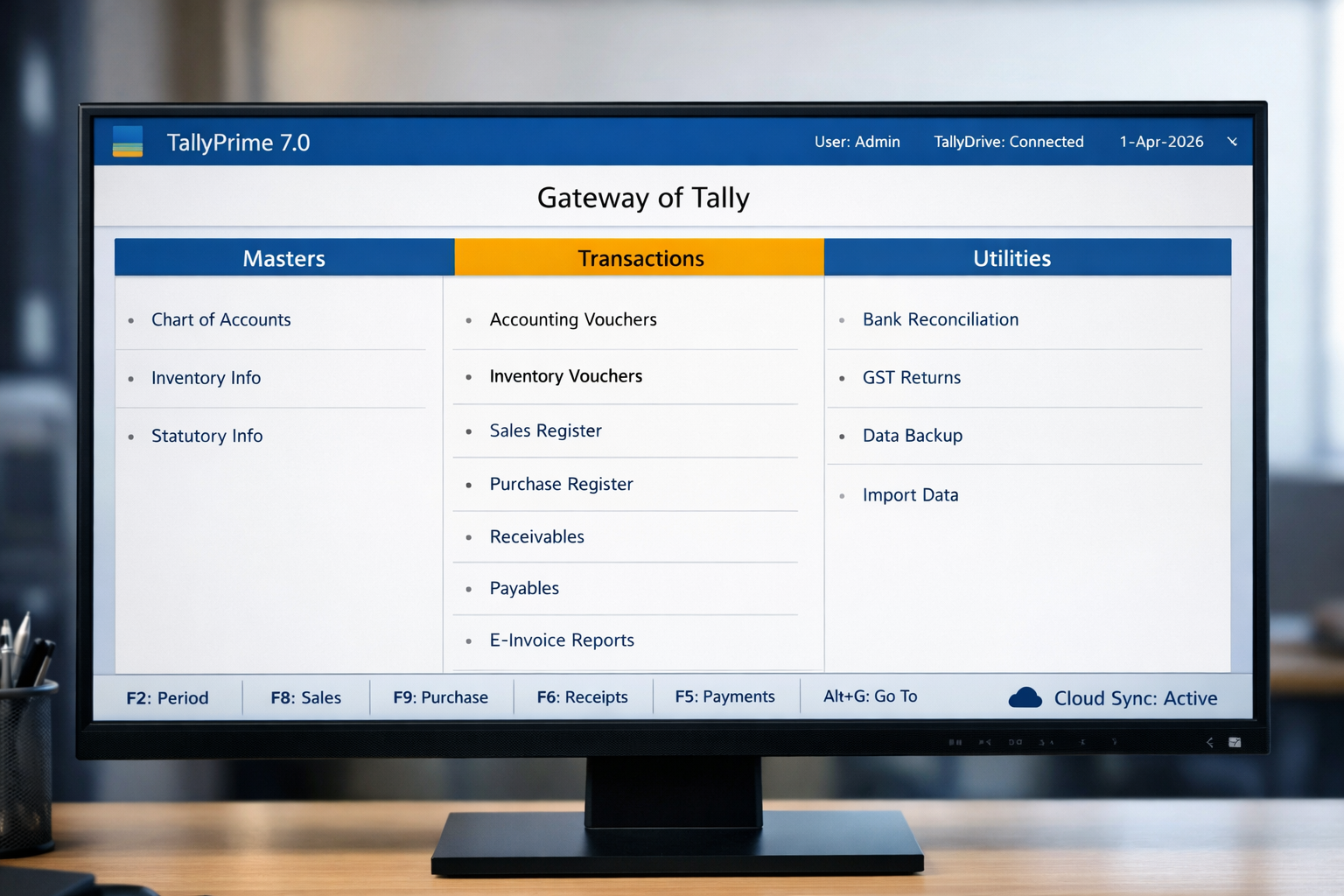
Caption :- The new TallyPrime 7.0 dashboard featuring the TallyDrive cloud sync status for 2026.
Example – Just as we track daily household expenses in a personal diary, a Tally Voucher acts as the official diary for every business transaction.
Tally Prime Voucher Types: 50+ New Shortcuts & Secret Hacks for 2026!
1. Accounting Vouchers: The Core of Your Ledger
Accounting vouchers are the backbone of financial reporting. In 2026, Tally has made these even more “Connected” with banks and portals.
Recording transactions correctly is the first step toward perfect books. If you want to explore the complete category of every single entry mode, check out our [List of Voucher Types in Tally Prime 2026: The Ultimate Professional Guide] to understand the logic behind every transaction.
A. Contra Voucher (F4)
The Contra voucher is strictly for internal cash and bank movements. A common mistake beginners make is using this for payments to parties—don’t do that! Use F4 only when no outside party is involved.
- Practical Scenario: If you transfer ₹50,000 from your Cash box to your HDFC Bank account, it’s a Contra entry.
- 2026 Tip: Tally now auto-detects if you try to put a party name in a Contra entry and warns you instantly.
- Shortcut: F4
While Contra handles your internal cash movement, you’ll need a different screen when that money actually leaves the business—which brings us to Payments.
This is for any money going out of your business. Whether you are paying rent, salaries, or buying office supplies, F5 is your go-to screen.
B. Payment Voucher (F5)
- 2026 Update: The F5 key is no longer just about recording a payment. With the 2026 PrimeBanking integration, you can now sync your bank API directly. This means you skip the manual hassle of logging into your net banking app separately. It’s a huge time-saver for businesses with high transaction volumes.
Many professionals worry about data safety when syncing banks directly. Tally’s 2026 update follows the latest [Secure Banking API standards] to ensure that your financial credentials and transaction tokens remain encrypted and private.
- Formula for GST Inclusive Payment: If you paid a total of ₹1,180 (including 18% GST), use this to find the base value:
Practical Formula:
*This formula helps you calculate the base value when the amount is inclusive of 18% GST.
- Shortcut: F5
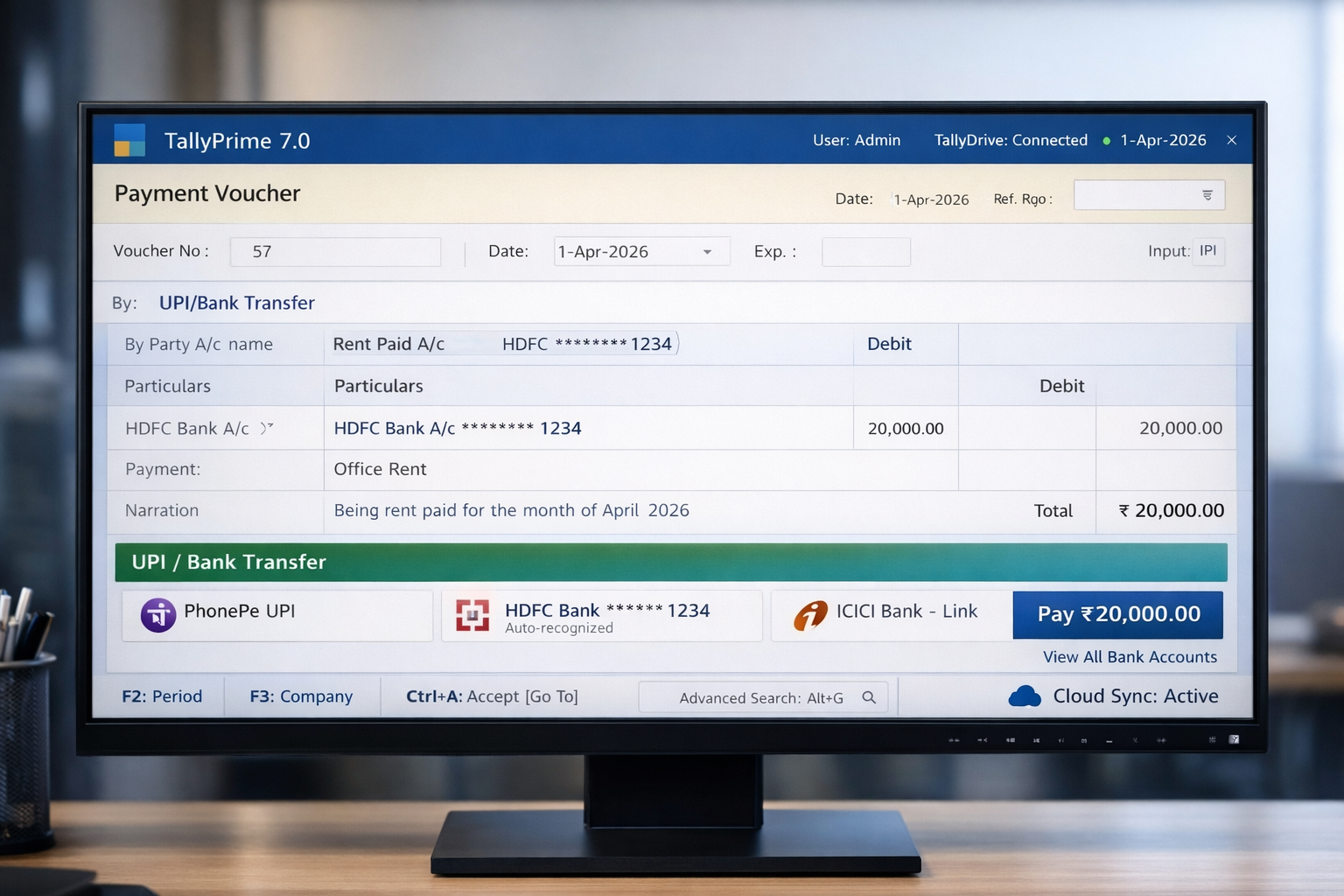
Caption :- Recording an office rent payment using the integrated UPI and Bank transfer feature in TallyPrime.
Once you’ve managed your outflows, you’ll naturally want to track the money flowing into your accounts. Let’s look at Receipts next.
C. Receipt Voucher (F6)
When money comes in, you use the Receipt voucher. This could be a payment from a customer or even a loan taken for the business.
- Pro Advice: In 2026, always use the “SmartFind” (Ctrl + F) feature inside the receipt screen to quickly find which invoice this payment belongs to. It saves minutes of scrolling through old bills.
- Shortcut: F6
Cash and bank entries are straightforward, but what about non-cash adjustments like depreciation? That’s where the Journal voucher comes in.
D. Journal Voucher (F7)
This is a “Non-Cash” voucher. It is used for adjustments like Depreciation, Accrued Income, or transferring balances between two ledgers.
- CA Insight: CAs use F7 heavily during year-end audits to pass rectification entries. It doesn’t affect your bank or cash balance directly, only your ledger books.
- Shortcut: F7
Now that we’ve covered basic accounting, let’s dive into the most critical part for 2026: Sales and Purchases under the new GST rules.
2. Sales & Purchase Vouchers (The 2026 Compliance Update)
Working with Sales and Purchases has changed a lot this year. With the new Invoice Management System (IMS), Tally now alerts you if your supplier hasn’t uploaded the bill. This is a lifesaver for CAs during GST filing.
E. Sales Voucher (F8)
This is the most used voucher in any business. In 2026, the Sales voucher is not just about printing a bill; it’s about real-time compliance.
- What’s New: If your turnover is above the limit, Tally will ask: “Generate e-Invoice now?” as soon as you save. One click and your IRN is generated.
- Pro Tip: Use Ctrl + H to switch between ‘Item Invoice’ (for products) and ‘Accounting Invoice’ (for services).
- Shortcut: F8
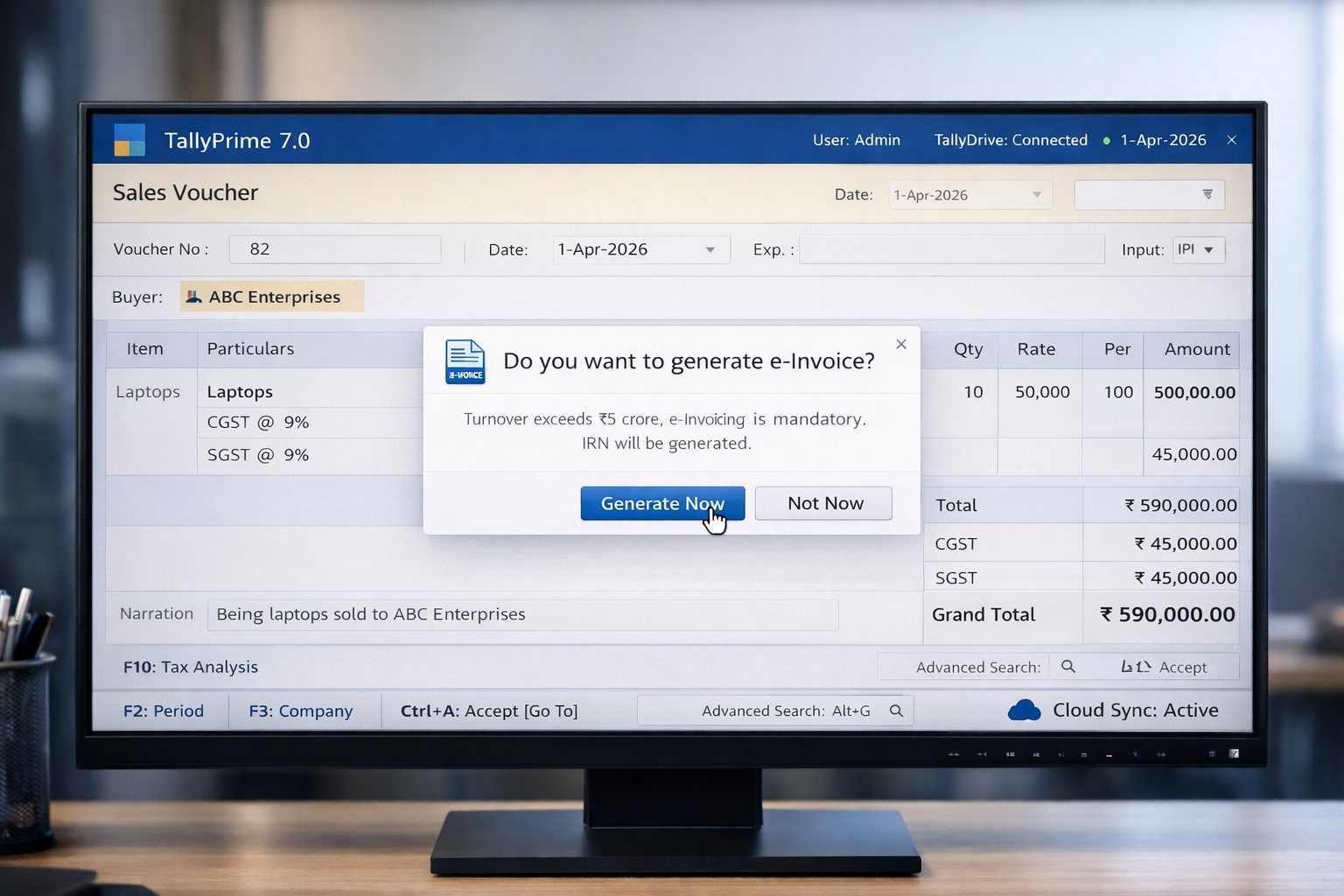
Caption :- Automatic GST calculation and real-time e-Invoice generation prompt in the 2026 Sales Voucher.
F. Purchase Voucher (F9)
When you buy goods for your business, you record them here.
- The 2026 IMS Advantage:Purchase entry in 2026 is all about ITC protection. Tally now cross-checks your entries with GSTR-2B in real-time. If your supplier is lagging on their filings, Tally flags it immediately. This ‘Prevention-first’ approach ensures your books are audit-ready every single day.
- Shortcut: F9
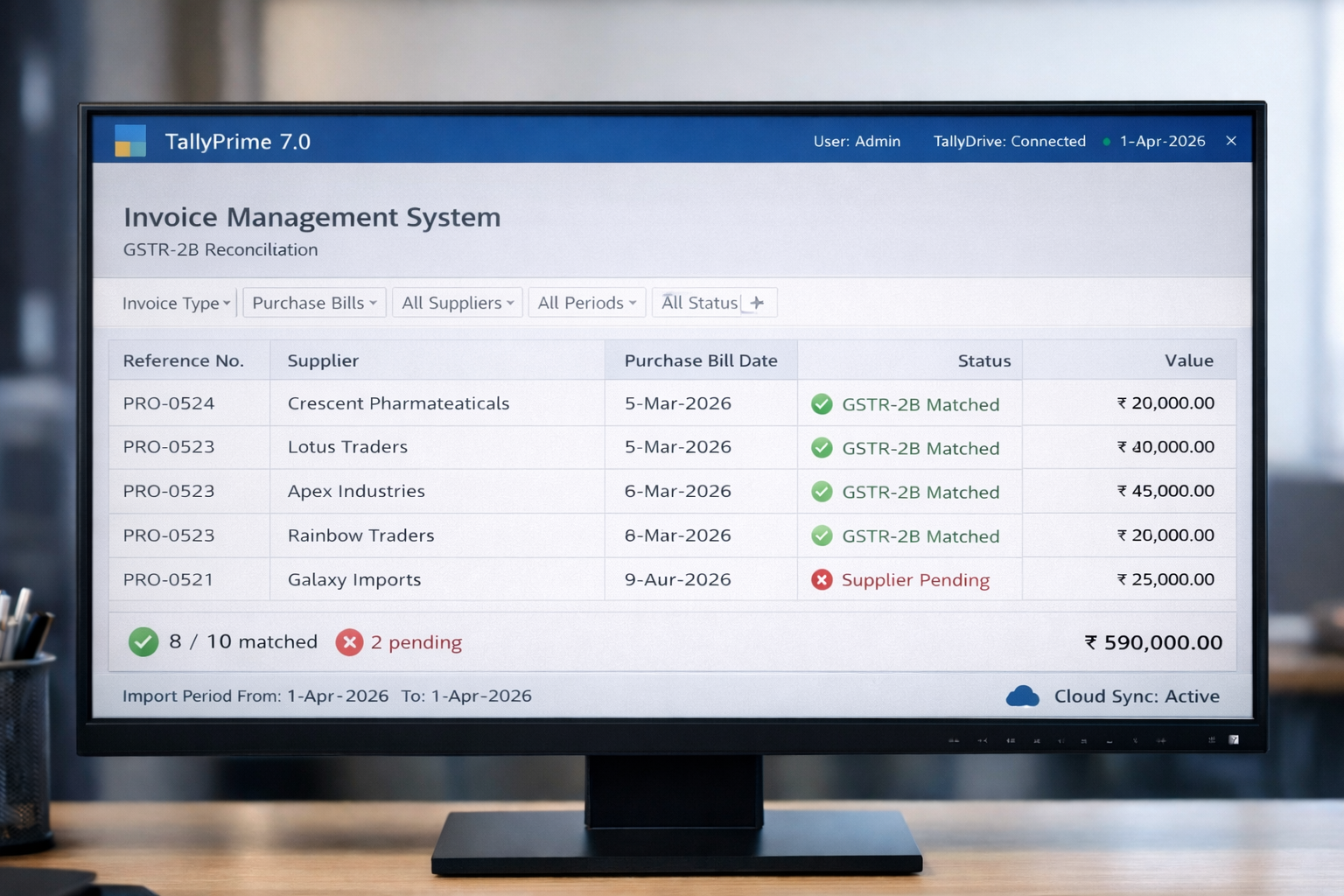
Caption :- The IMS dashboard in TallyPrime 7.0 showing live GSTR-2B reconciliation and supplier filing status.
G. Debit Note (Alt + F5) & Credit Note (Alt + F6)
These are used for returns.
- Debit Note: Use this when you return goods to a supplier (Purchase Return).
- Credit Note: Use this when a customer returns goods to you (Sales Return).
- Shortcut: Alt + F5 (Debit), Alt + F6 (Credit).
3. Inventory & Specialized Vouchers
For businesses managing stock, these vouchers are indispensable:
| Voucher Type | Shortcut Key | Purpose |
| Physical Stock | Ctrl + F7 | Used during month-end to match computer stock with actual warehouse stock. |
| Stock Journal | Alt + F7 | Used to transfer items from “Godown A” to “Godown B” or for manufacturing. |
| Delivery Note | Alt + F8 | Sending goods to a customer before the actual invoice is raised. |
| Receipt Note | Alt + F9 | Receiving goods from a supplier before the bill arrives. |
Don’t try to memorize all at once. Start with F5 and F8—they cover 70% of a regular day’s work.
Complete Tally Prime 2026 Shortcut Key Cheat Sheet
To save hours of manual work, memorize these essential navigation keys that every expert uses:
- Alt + G (Go To): The “Universal Search” of Tally. You can open a Balance Sheet while you are in the middle of a Sales entry.
- Ctrl + A: The fastest way to Save. Never click “Yes” with a mouse again.
- Ctrl + Enter: Need to change a ledger name? Just hover over it and press this to edit it instantly.
- Alt + C: Create anything (Ledger, Item, Unit) right from the voucher screen.
- Ctrl + F (SmartFind): New in 2026—find any transaction by just typing the amount or a small part of the narration.
Speed is everything in accounting. While we covered the basics here, you can significantly boost your productivity by mastering advanced navigation. Visit our dedicated guide on [Essential Shortcut Keys for TallyPrime 2026] to work like a pro and save hours of manual entry.
Practical Example: Recording a GST Sale in 2026
Let’s see how a real transaction looks now:
- Open F8: Enter the buyer’s name.
- Item Entry: Select ‘Laptop’—10 units at ₹50,000 each.
- Taxation: Add CGST and SGST. Tally 2026 will auto-calculate 9% each (₹45,000 + ₹45,000).
- 2026 Automation: Tally will show a small popup: “Validating GSTIN with Portal…” to ensure your buyer is active.
- Final Save: Press Ctrl + A. Your e-invoice is ready, and your data is backed up to TallyDrive cloud automatically.
Frequently Asked Questions (FAQs)
Q1: What is the most significant upgrade in TallyPrime 7.0 (2026) ?
The game-changer this year is definitely the TallyDrive integration and the enhanced IMS (Invoice Management System). While previous versions were great for recording, 2026 is all about automation. Tally now acts as a bridge between your books and the GST portal, making reconciliation almost hands-free.
Q2: Is it okay to record high-value Cash Sales in the F8 Voucher ?
Technically, yes—you can just select ‘Cash’ in the party field. However, from a professional auditor’s perspective, I recommend creating a proper ledger for high-value transactions. It not only keeps your GST compliance clean but also makes it much easier to track customer history during an audit.
Q3: How do I manage the new 40% GST rate for Tobacco products in 2026 ?
Handling the new ‘Sin Tax’ is simple if you use the 2026 MRP-based GST Plug-in. Instead of manual math, let Tally do the heavy lifting. It uses the back-calculation formula :- Taxable Value = MRP x Qty/1.40 This ensures your tax liability is always spot-on without manual errors.
Compliance rules are getting stricter every day. To ensure your tax liability is always accurate and to avoid legal notices, read our detailed breakdown on how to [Master Tax Analysis in TallyPrime: Essential Tips for 2026] for error-free GST filing.
Conclusion
Mastering TallyPrime 7.0 isn’t just about knowing which key to press; it’s about using the new automation to save your time. From TallyDrive’s cloud safety to the real-time IMS matching, the 2026 updates are designed to make you a faster, more accurate accountant. Start practicing these shortcuts today, and you’ll see your manual workload disappear.
Disclaimer
This blog is for educational purposes only. While we provide the latest 2026 information, always cross-verify with official Tally Solutions documentation or consult a Chartered Accountant for legal tax filings. Features mentioned like TallyDrive and IMS require an active TSS subscription
Note :- These features are based on the latest Release 7.0. Always sync your Tally Software Services (TSS) to access these live portal features.


