


Mastering the Shortcut Key of Credit Note in Tally Prime is essential for running a business in 2026, where dealing with fast-paced transactions is the norm. But what happens when a customer returns goods or you accidentally overbill them? Instead of panicking, pro accountants rely on this specific tool to manage corrections effortlessly. In this guide, we won’t just look at the shortcut key, but we’ll dive deep into how TallyPrime 7.0 has automated the entire adjustment process to keep your GST compliance 100% accurate..
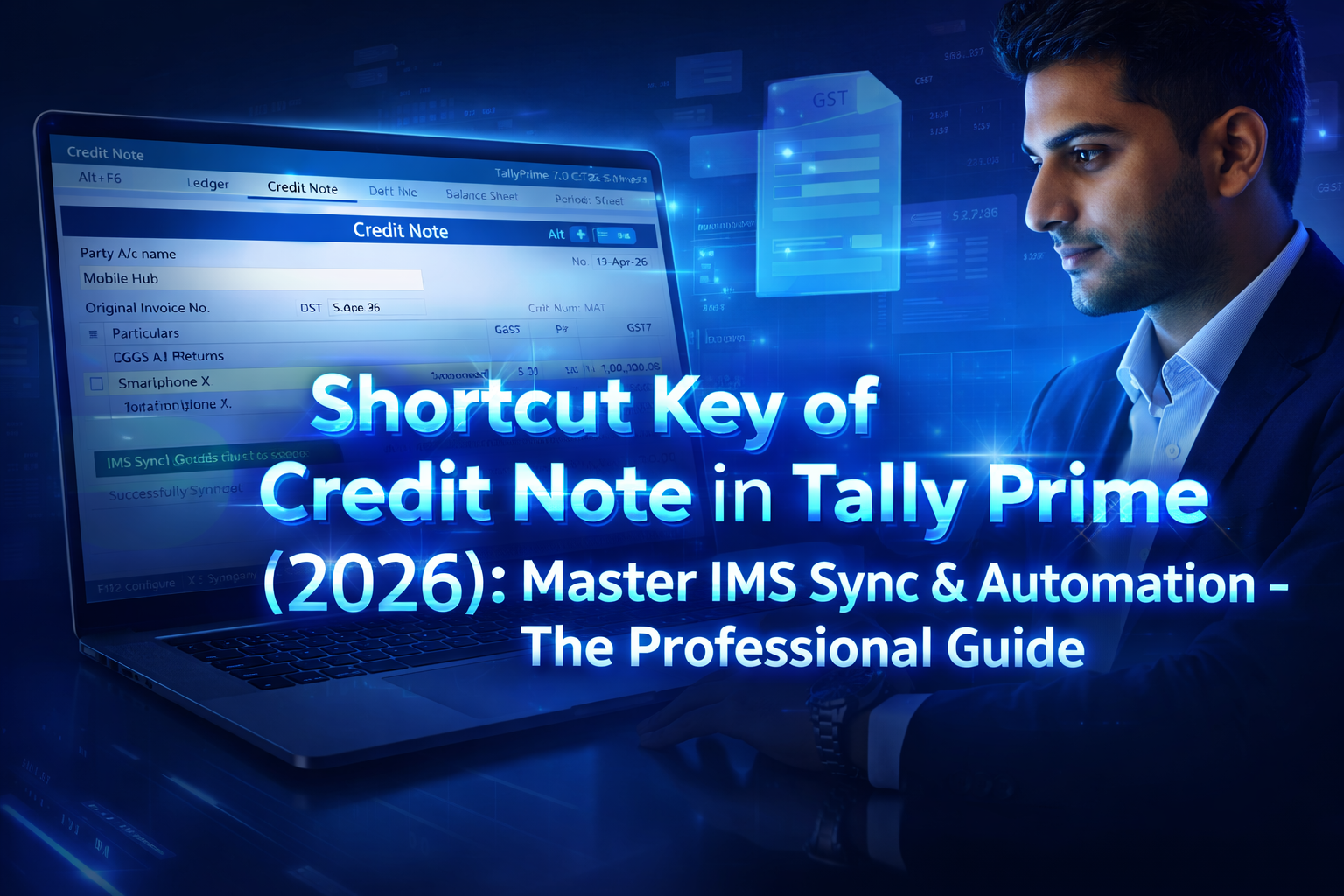
As an accountant or business owner, your heart rate shouldn’t go up. Why? Because Credit Notes are your financial “undo” button.
In 2026, with the launch of TallyPrime 7.0, the way we handle Sales Returns and Price Adjustments has become faster and more automated. If you are still navigating through menus with a mouse, you are losing precious minutes.
In this ultimate guide, we will master the Shortcut Key of Credit Note in Tally Prime, explore the 2026 updates, and see how a single key combination can keep your GST compliance perfect.
⚡ The Magic Command: What is the Shortcut Key?
In Tally Prime, the dedicated shortcut key for a Credit Note is:
Access the Credit Note instantly from any Voucher screen.
While many beginners use F10 to see the list of “Other Vouchers” and then select Credit Note, a pro accountant uses Alt + F6 to jump straight into the action.
To become a truly efficient accountant, mastering just one key isn’t enough. If you want to speed up your entire data entry process, check out our comprehensive guide on Tally Prime Shortcut Keys 2026. This ultimate list covers everything from basic navigation to advanced hidden commands that every pro should know.
Shortcut Key of Credit Note in Tally Prime
🆕 What’s New in 2026? (TallyPrime 7.0 Updates)
The 2026 accounting landscape has shifted towards total automation. With TallyPrime 7.0, recording a Credit Note isn’t just a manual entry anymore; it’s backed by data intelligence:
- GST on MRP (Tobacco & Luxury Goods): Effective February 1, 2026, Tally now automatically back-calculates taxable values for MRP-linked items, saving you from manual tax errors.
- SmartFind Integration: No more scrolling through months of data. Just type the amount or date, and Tally finds the original invoice for you instantly.
- IMS (Invoice Management System) Sync: This is a game-changer. The moment you save an entry, it syncs with the GST portal. This real-time reconciliation ensures your GSTR-1 and the buyer’s GSTR-2B stay in perfect harmony, drastically reducing the risk of legal notices.
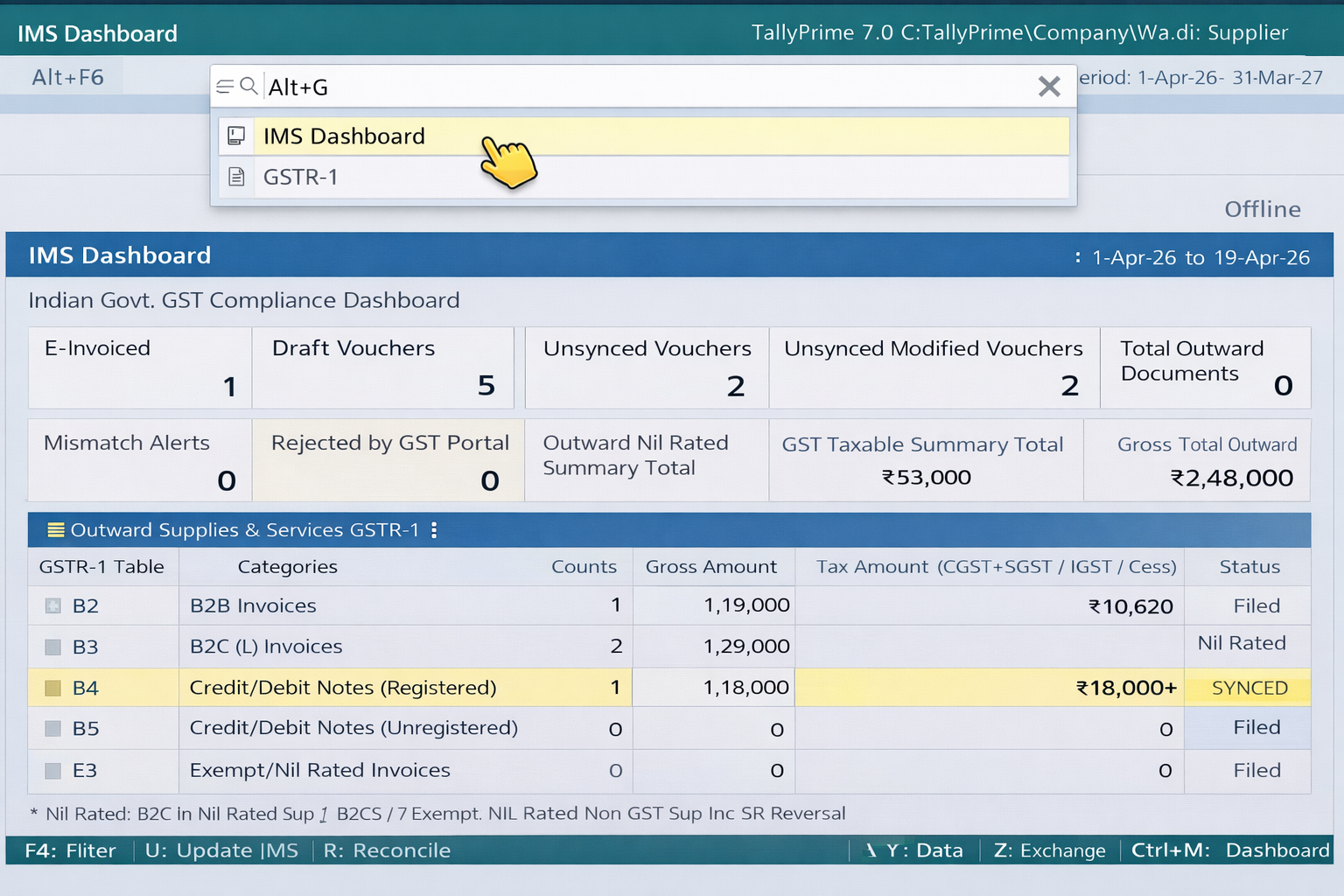
Caption :- Real-time GST compliance: The IMS Dashboard verifies that your Credit Note is successfully ‘SYNCED’ with the GST portal.
Stay updated with the latest TallyPrime 7.0 technological shifts by referring to the official documentation. For detailed technical specifications and release notes, visit the Official Tally Solutions Release Page to better understand the new automation engine.
With the 2026 IMS integration, you no longer need to manually verify if your buyer has seen the credit note. The moment you save the entry in Tally, it reflects in the GST portal, reducing the risk of litigation.
🛠 How to Enable & Use Credit Note (Step-by-Step)
Sometimes, pressing Alt + F6 doesn’t work. This is because the voucher type might be “Inactive” by default.
Ensure your data aligns with tax laws for a smooth audit. For accurate GST definitions and legal compliance, visit the GST Council’s Official Rules Section to keep your business safe from penalties.
Step 1: Activation (The F11 Secret)
- Go to Gateway of Tally.
- Press F11 (Features).
- Set “Enable Debit/Credit Notes” to Yes.
- Press Ctrl + A to save.
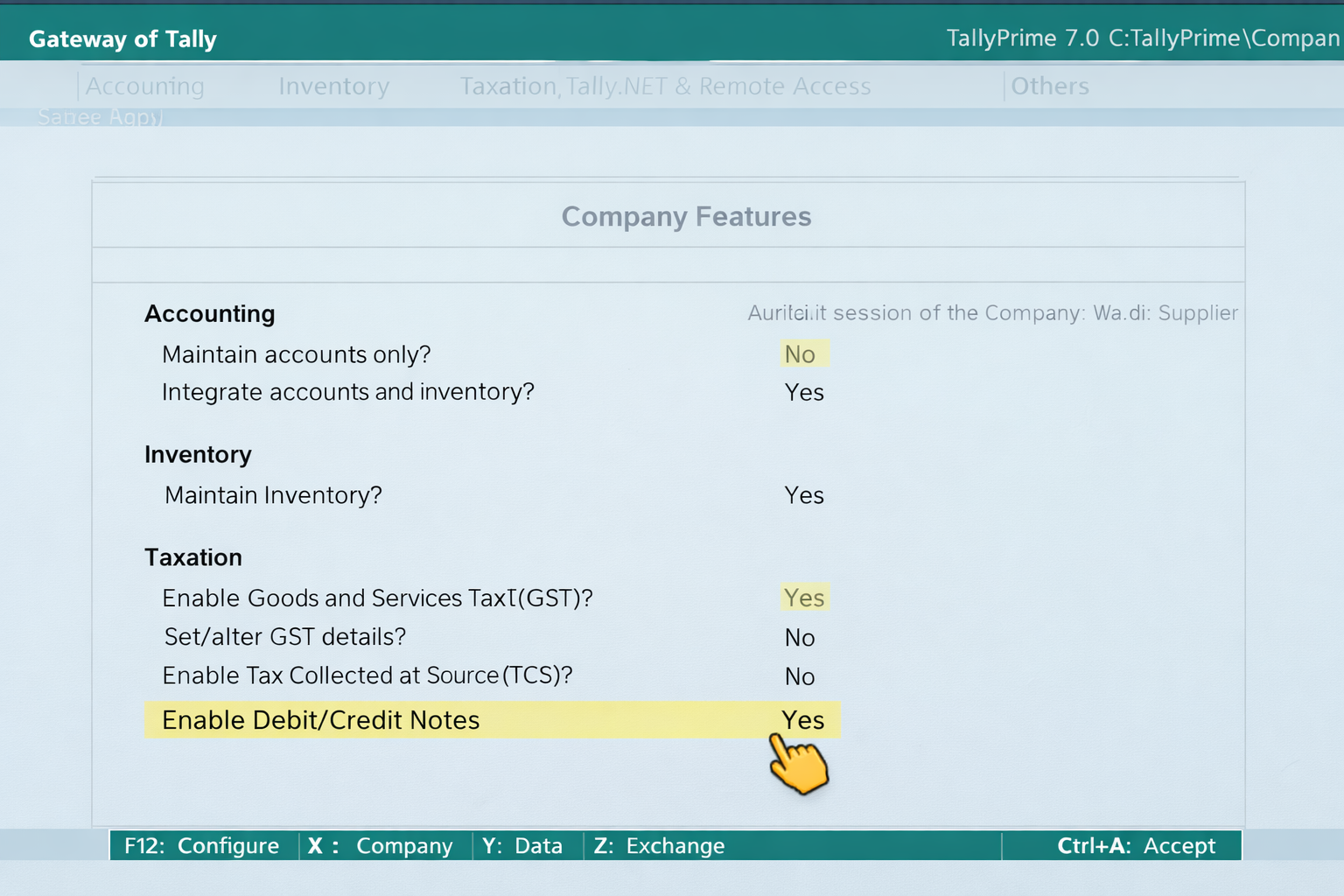
Caption -: Step-by-step activation: Navigate to F11 Company Features and set ‘Enable Debit/Credit Notes’ to ‘Yes’ to start recording returns.
Activating the Credit Note feature is the first hurdle many beginners face. If Alt + F6 isn’t responding, don’t worry—it’s usually just a setting issue in the F11 menu. Here is the exact workflow I use to ensure no data is missed during an audit.
Step 2: Recording the Entry
Once the feature is active, recording the transaction correctly is where most people make mistakes that lead to GST mismatches. In my years of handling audits, I’ve realized that simply entering the amount isn’t enough; you need a workflow that links every return to its source.
Below is the exact, fail-proof method I use in TallyPrime 7.0 to ensure your books stay balanced and your GST returns are ready for instant filing.
- Press Alt + F6: The Credit Note screen opens.
- Party A/c Name: Select the customer returning the goods.
- Original Invoice Details: This is crucial for GST. Enter the original invoice number and date.
- Ledger: Select the ‘Sales Return’ or ‘Sales’ ledger.
- Item Details: Enter the quantity and rate. Tally will auto-calculate the GST.
- Provide GST Details: Select the reason (e.g., Sales Return, Post Sale Discount, or Deficiency in Service).
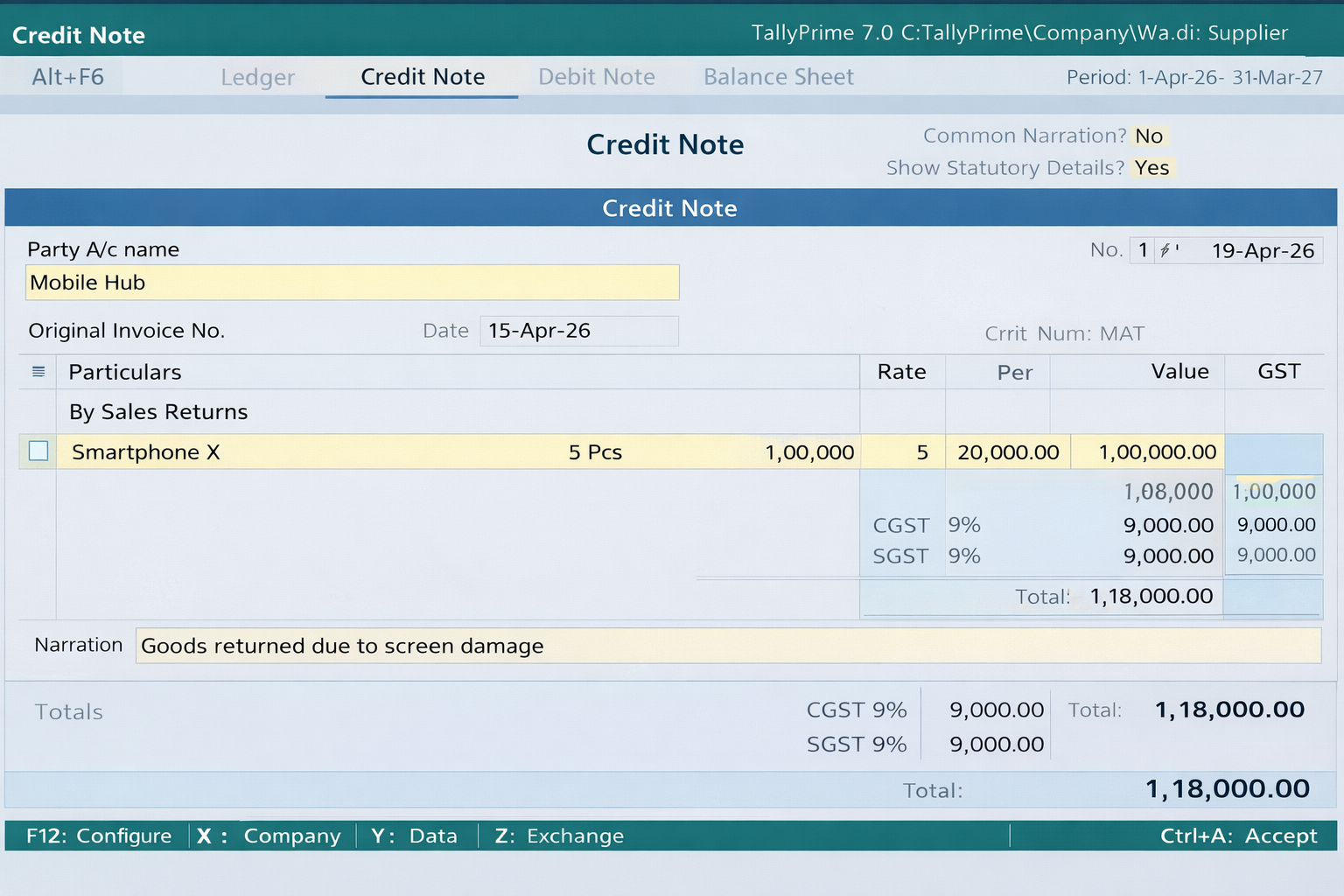
Caption :- A professional Credit Note entry in TallyPrime 7.0 showing accurate GST calculation and 2026 audit-ready dates.
📊 Credit Note vs. Debit Note: Don’t Get Confused!
For a Chartered Accountant (CA) or a senior auditor, seeing a Credit Note used where a Debit Note belongs is a red flag. Here is the 2026 quick-ref table:
Quick Comparison: Credit Note vs. Debit Note
| Feature | Credit Note | Debit Note |
|---|---|---|
| Shortcut Key | Alt + F6 | Alt + F5 |
| Common Use | Sales Return / Overbilling | Purchase Return / Underbilling |
| Customer Impact | Decreases Customer Balance | Increases Customer Balance |
| GST Impact | Reduces Output Tax Liability | Reduces Input Tax Credit (ITC) |
Understanding the fundamental differences between various vouchers is the backbone of error-free accounting. For a deeper dive into how different entries affect your ledger, read our List of Voucher Types in Tally Prime 2026. It provides a detailed breakdown of all 50+ voucher categories used in modern business scenarios.
A Real-Life Scenario: Imagine you sold 100 smartphones, but 5 were returned due to screen damage. Instead of deleting the original invoice (which is a huge GST mistake!), you issue a Credit Note. This keeps your inventory stock updated and automatically adjusts the tax you owe to the government. This is why the shortcut Alt + F6 is a lifesaver.
🧮 Precision Math: The 2026 MRP Rule
As you mentioned, TallyPrime 7.0 handles the heavy lifting, but for manual verification during a 2026 digital audit, you should keep this formula in your back pocket.
Modern GST compliance often requires complex calculations, especially when dealing with MRP-inclusive goods. To simplify these tasks, we have created a specialized tutorial on how to Master the New AI-SmartFind & MRP Formulas. This guide will help you automate your tax derivations and stay 100% audit-ready in the TallyPrime 7.0 era.
When you issue a Credit Note for an item where the price is inclusive of GST (like luxury goods or tobacco), the taxable value is derived as follows:
Tax Back-Calculation (2026 MRP Rules)
Real-World Calculation Example:
If 10 units of a luxury item (MRP ₹1,400) are returned at 40% GST:
(10 × 1,400) / 1.4 = ₹10,000
Note: Tally will auto-allocate the remaining ₹4,000 to Tax Ledgers.
Tally will automatically allocate the remaining ₹4,000 to the Integrated or Central/State Tax ledgers.
💡 Pro Tips for Accountants & CAs
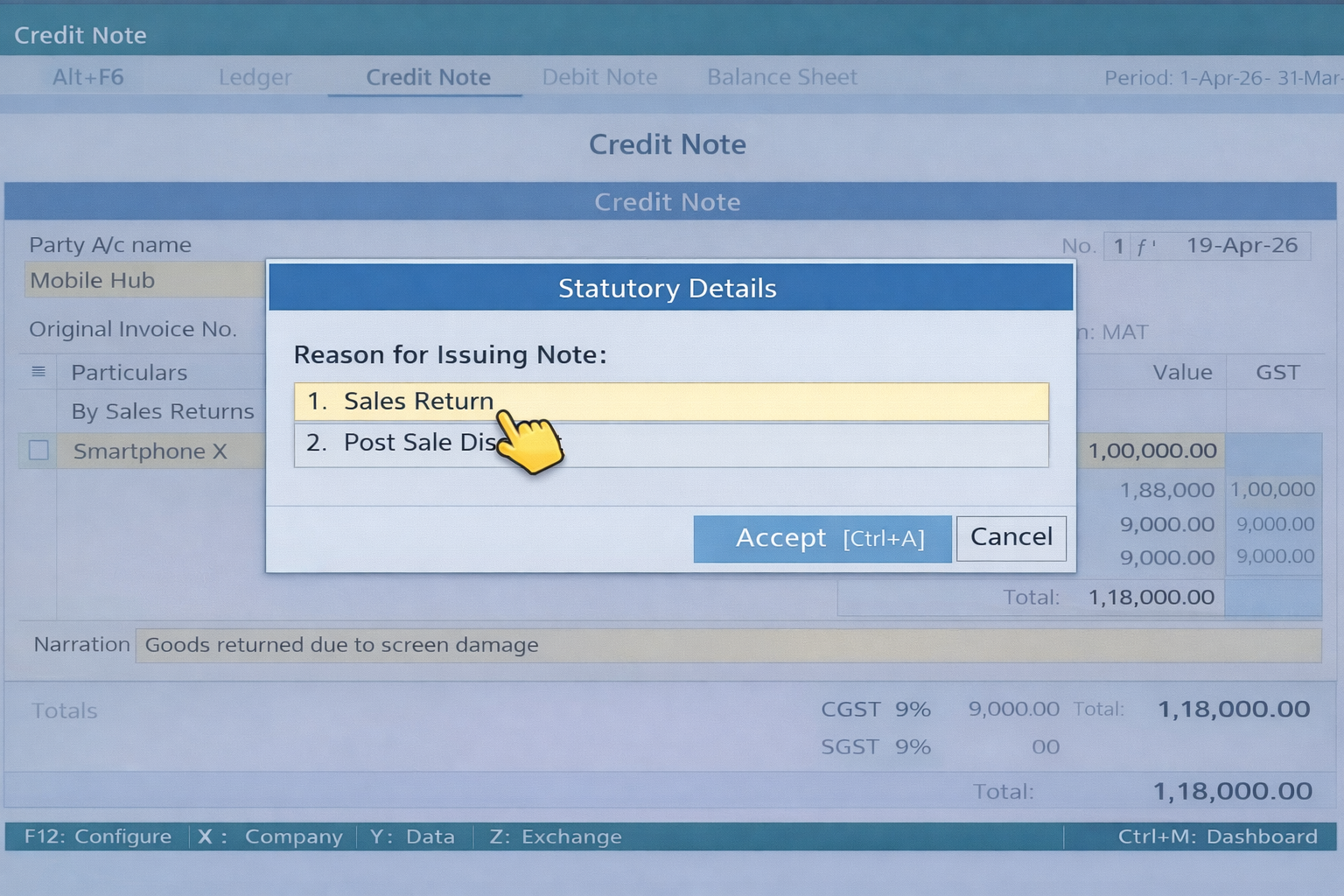
Caption :- Ensuring legal accuracy: Selecting 'Sales Return' as the reason in Statutory Details to prevent future GST mismatches.
For high-volume transaction management, understanding data synchronization is vital. If you face reconciliation issues, the GST Portal Help & Taxpayer Services offers excellent tutorials on how the IMS backend processes your Credit Notes.
- Mode Change (
Ctrl + H): Always use Item Invoice Mode if you are returning physical goods. Use Accounting Invoice Mode if you are just adjusting the value (e.g., giving a discount). - Narration is Evidence: Always write a detailed narration. In 2026, digital audits are common, and a clear narration saves you from "Show Cause Notices."
- Auto-Link: Use the 'Go To' (Alt + G) feature to check your GSTR-1 immediately after saving the Credit Note to ensure it's reflecting in Table 9B.
❓ Frequently Asked Questions (FAQ)
Q1. Why is Alt + F6 not working in my Tally ?
You likely haven't enabled Credit Notes in the F11 Features. Also, check if another software is using that shortcut key as a global hotkey.
Q2. Can I issue a Credit Note without an original invoice ?
Technically yes, but for GST compliance, it is "highly discouraged." Without a reference, the tax department may disallow your tax adjustment.
Q3. What is the difference between Credit Note and Journal Voucher?
A Credit Note specifically updates GST registers and inventory, whereas a Journal Voucher (F7) is for non-cash adjustments that usually don't involve inventory.
📢 Disclaimer
This guide is for educational purposes only. Accounting standards and GST laws are subject to change by the government. Always consult with a certified tax professional or refer to the latest Tally Solutions documentation before making significant financial entries.
✅ Conclusion
Mastering the Shortcut Key of Credit Note in Tally Prime is more than just speed—it’s about accuracy and staying ahead in the digital accounting era of 2026. By using Alt + F6 and following the proper GST linking process, you ensure that your books are always audit-ready.


