

Introduction
In India, Create SGST & CGST Ledger in Tally Prime in GST is a critical part of business accounting, and Tally Prime makes it easy to manage taxes like SGST (State GST) and CGST (Central GST). Whether you’re a new business owner, accountant, or bookkeeper, creating tax ledgers correctly in Tally Prime is essential for accurate GST reports, compliance, and tax filing.

This updated 2026 guide walks you through how to create SGST & CGST ledgers in Tally Prime, considering the latest changes in GST rules, UI updates in Tally Prime, and best practices to reduce errors.
Based on my practical experience working with Tally users, I’ve noticed that many GST errors occur simply because SGST and CGST ledgers are not configured correctly. This guide is written using real accounting mistakes faced by students, accountants, and small business owners in day-to-day GST compliance.
Table of Contents
- What Is SGST and CGST?
- Why You Must Create Separate Ledgers
- Step-by-Step: Creating SGST & CGST Ledgers in Tally Prime
- Example With Numbers
- Common Errors & How to Fix Them
- Best GST Settings in Tally Prime (2026)
- FAQs
- Conclusion
- Disclaimer
What Is SGST & CGST? (Updated 2026)
GST (Goods and Services Tax) is divided into:
🔹 CGST – Tax collected by the Central Government
🔹 SGST – Tax collected by respective State Governments
For intra-state transactions, both SGST and CGST are applicable. It’s important to record both taxes separately for accurate tax reporting.
For official clarification on how SGST and CGST are applied in intra-state transactions, you can also refer to the guidelines published on the Goods and Services Tax official portal, which explains the structure and division of GST in India.
In Tally Prime, SGST and CGST are recorded through separate GST tax ledgers to ensure accurate tax calculation and reporting.
Why You Must Create SGST & CGST Ledgers
Without specific tax ledgers:
✔️ GST reports in Tally Prime may show errors
✔️ GST returns (GSTR-1/3B) may be wrong
✔️ Audit discrepancies may occur
✔️ Tax liabilities shown in reports will be inaccurate
So creating dedicated SGST and CGST ledgers is not optional — it’s mandatory for correct GST accounting.
The requirement to maintain separate SGST and CGST records is aligned with return formats and compliance standards issued by tax authorities. For official notifications and compliance updates, users can check the Central Board of Indirect Taxes and Customs (CBIC) website.
Maintaining separate SGST and CGST ledgers is also required to stay compliant with GST return formats prescribed by the Government of India.
Step-by-Step: Creating SGST & CGST Ledgers in Tally Prime
Step 1: Open Tally Prime
- From the Gateway of Tally → Accounts Info
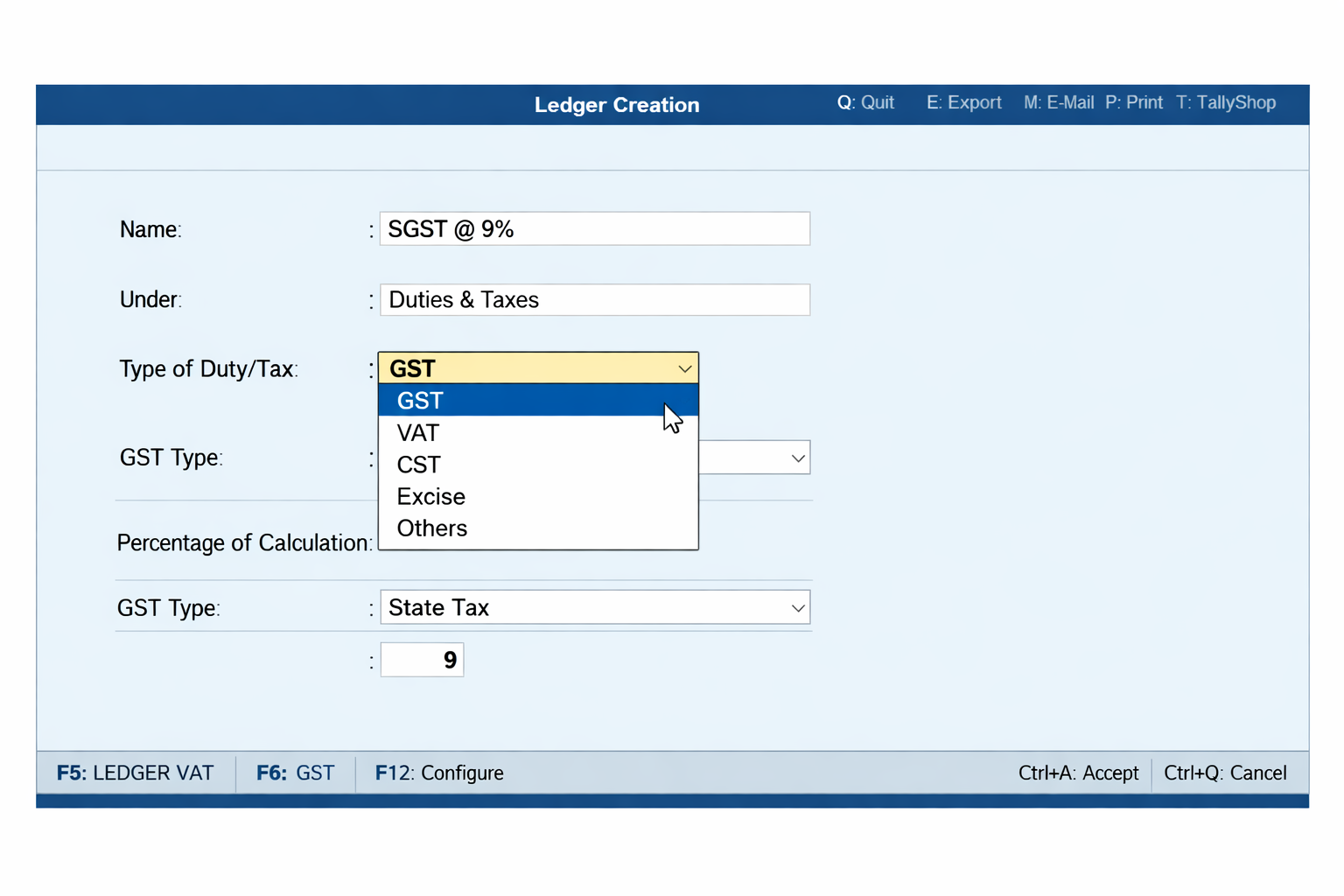
Step 2: Create SGST Ledger
- Go to Ledger → Create
- Enter Name: SGST
- Under Group: Duties & Taxes
- Type of Duty/Tax: GST
- Tax Type: State Tax
- Percentage: 9% (or applicable rate)
- Save
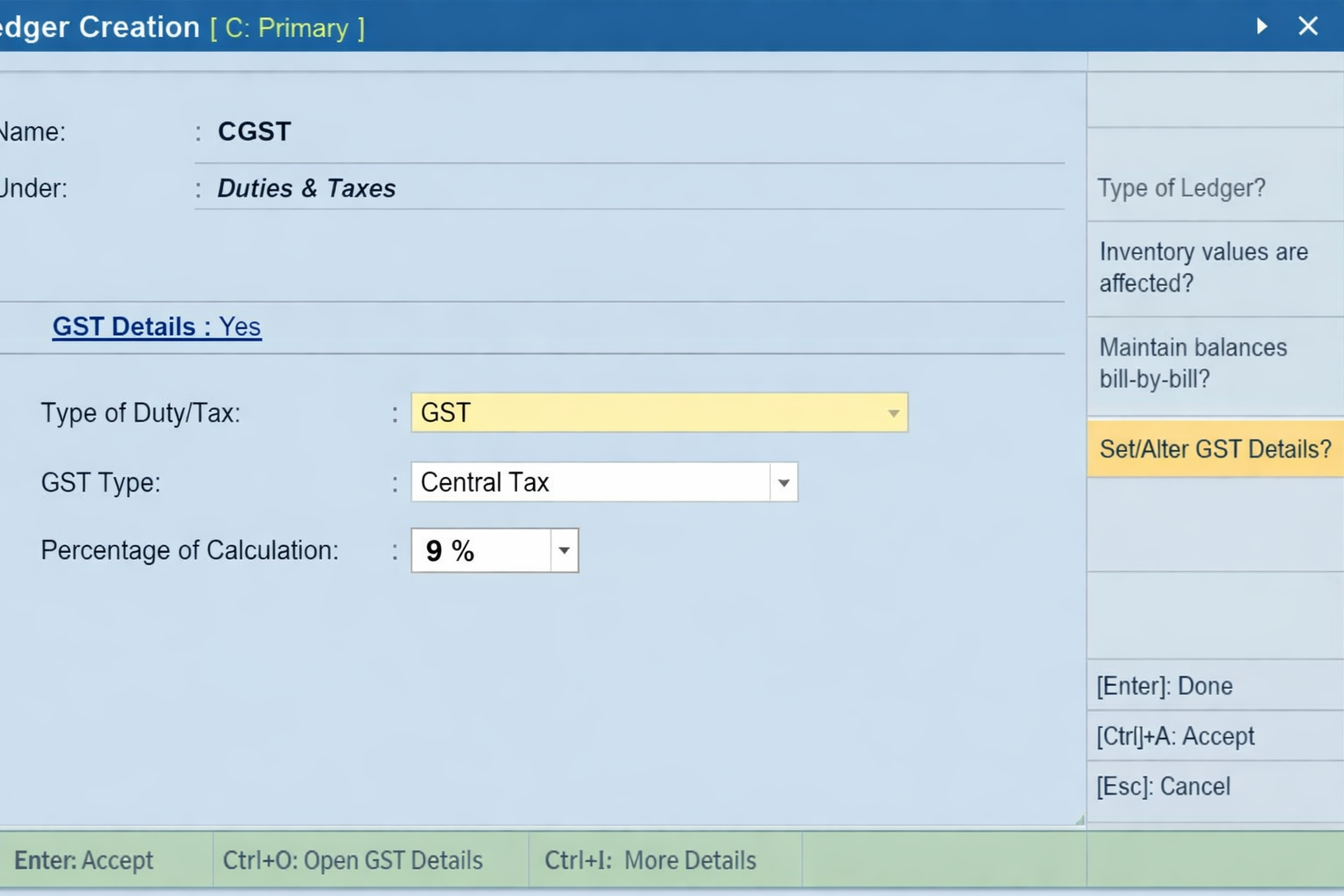
Step 3: Create CGST Ledger
- Go to Ledger → Create
- Name: CGST
- Under Group: Duties & Taxes
- Type of Duty/Tax: GST
- Tax Type: Central Tax
- Percentage: 9% (or your applicable rate)
- Save
📌 Note: In some states, SGST is recorded as “State Tax” — make sure you select correct tax type based on Tally Prime version.
If you want to understand the complete GST ledger structure in detail, including tax grouping and configuration basics, you can also refer to our guide on How to create GST ledger in Tally ERP 9, which explains the concept step by step for beginners.
Example With Numbers
Suppose you sell goods worth ₹10,000 within your state and GST is 18% (9% CGST + 9% SGST).
Calculation:
👉 CGST = 9% of 10,000 = ₹900
👉 SGST = 9% of 10,000 = ₹900
👉 Total GST = ₹1,800 (added in the invoice)
In Tally Prime, the Sales voucher will automatically post the amounts to CGST and SGST ledgers — no manual math needed.
Formula:
CGST = Taxable Value × (GST Rate ÷ 2)
SGST = Taxable Value × (GST Rate ÷ 2)
This automatic calculation reduces manual errors and ensures consistency between invoices and GST returns.
Once SGST and CGST ledgers are created correctly, Tally automatically calculates tax during voucher entry. To clearly understand this process with practical examples, you can check our detailed guide on How to calculate GST in Tally ERP 9, which explains automatic GST calculation in simple terms.
Common Errors & How to Fix Them
Based on common questions from students and accountants, these are the most frequent GST mistakes seen in Tally Prime.
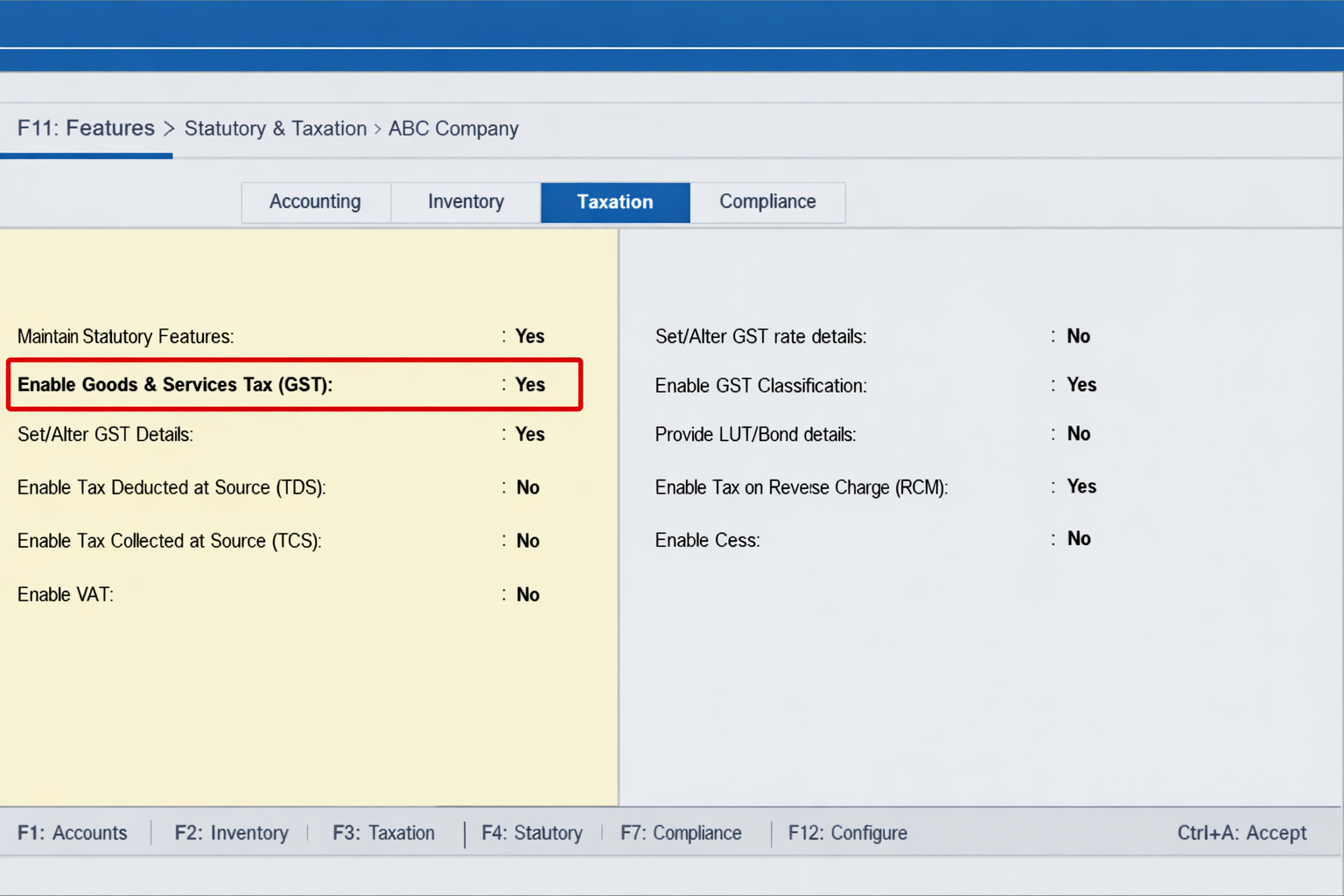
❌ Issue: GST doesn’t show in invoice
✔️ Fix: Check GST Activation
Go to → F11: Taxation → Enable GST
❌ Issue: Wrong tax percentage in invoice
✔️ Fix: Ensure correct GST rate is entered while creating ledger
❌ Issue: IGST appearing instead of SGST/CGST
✔️ Fix: Check customer/state location (Inter-state vs Intra-state)
Most of these errors are seen during return filing when users realise GST figures do not match, which is why correct ledger setup is crucial from day one.
Best 2026 GST Settings in Tally Prime
🟢 Always enable GST reconciliation
🟢 Regularly update Tally definitions after GST rate changes
🟢 Verify State vs Central tax ledgers before finalizing invoices
⚠️ India GST rates and rules change frequently — always update Tally Prime when notified.
Before creating GST ledgers, it is equally important to ensure that GST is properly enabled in Tally. If you are unsure about the activation process, you can refer to our step-by-step guide on How to apply GST in Tally ERP 9, which covers GST enablement and basic setup.
These settings help avoid mismatches between books and GST portal data, especially during return filing and audits.
FAQs (Frequently Asked Questions)
Q1. Can Tally Prime calculate GST automatically ?
Yes. Once GST is enabled and tax ledgers are configured correctly, Tally Prime automatically calculates SGST and CGST during voucher entry without manual calculation.
Q2. What is the difference between SGST and CGST ledger ?
SGST is the State tax, and CGST is the Central tax for intra-state sales.
Q3. Do I need separate ledgers for different GST rates ?
Yes. For each GST rate (5%, 12%, etc.), it’s recommended to create separate tax ledgers.
Q4. What if my business is inter-state ?
Then IGST is applicable instead of SGST and CGST.
Q5. Is this setup valid for 2026 and future updates ?
Yes. As of 2026, this ledger setup follows the latest GST structure in Tally Prime. However, users should always check for GST rate or compliance updates issued by the Government of India.
Conclusion
Setting up SGST and CGST ledgers in Tally Prime is a foundational task for correct GST accounting. Follow the steps above to ensure your GST records are compliant, accurate, and ready for reporting and filing.
Regularly update Tally Prime and check GST notifications from the Government of India so that your tax setup reflects the latest rules for 2026.
If you are new to Tally Prime, double-check your GST ledger setup before entering transactions to avoid long-term reporting errors.
Disclaimer
This blog is for educational purposes only. While every effort has been made to provide up-to-date and accurate information as of 2026, GST rules change periodically. Please consult a qualified accountant or tax professional for advice specific to your business before making decisions.


